

How to Generate Match Reports, Player Reports, and Player Videos
This guide explains how to download a full match report, an individual player report, and an individual player video from a match page in the KoraStats platform.Before You Start
Make sure you have already opened the match you want to work with.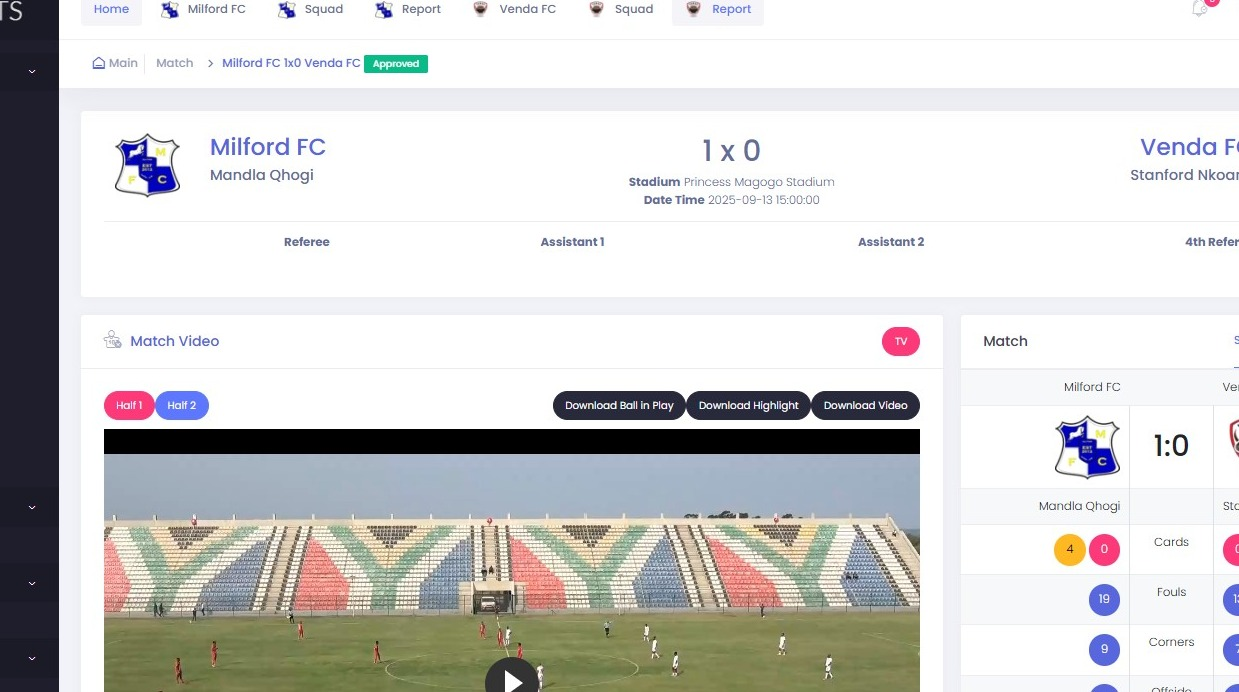
Download a Match Report
- Open the required match.
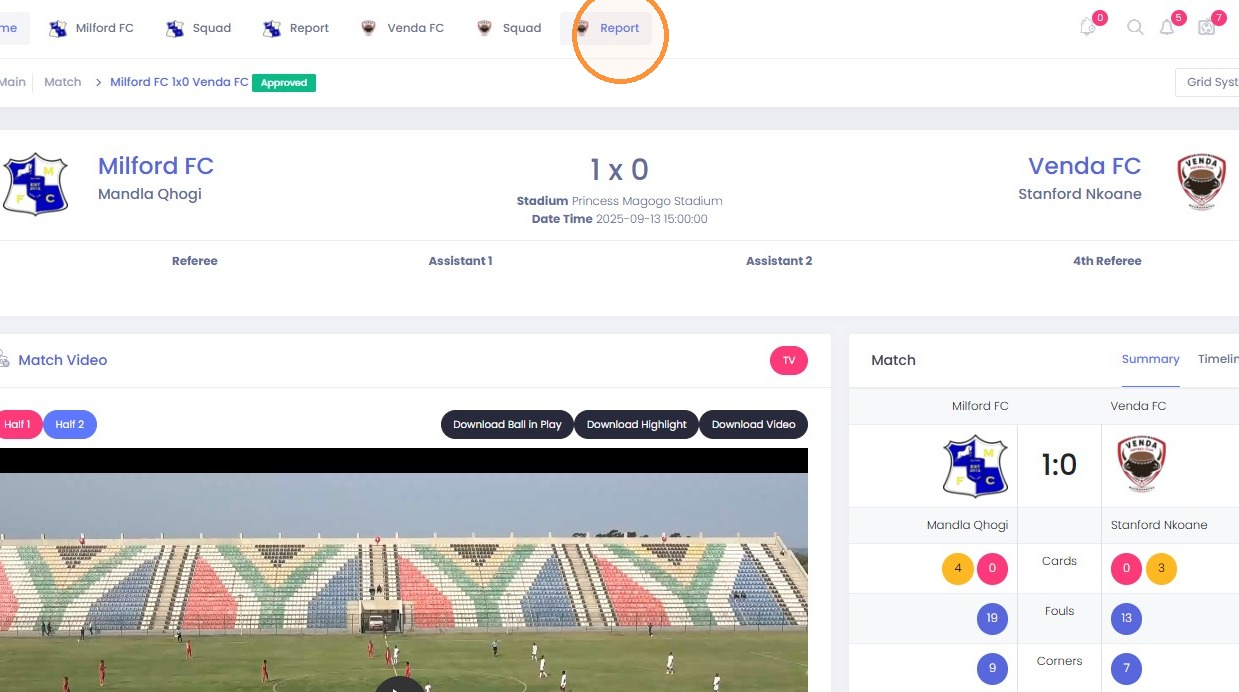
- Click Report to request or download the match report.
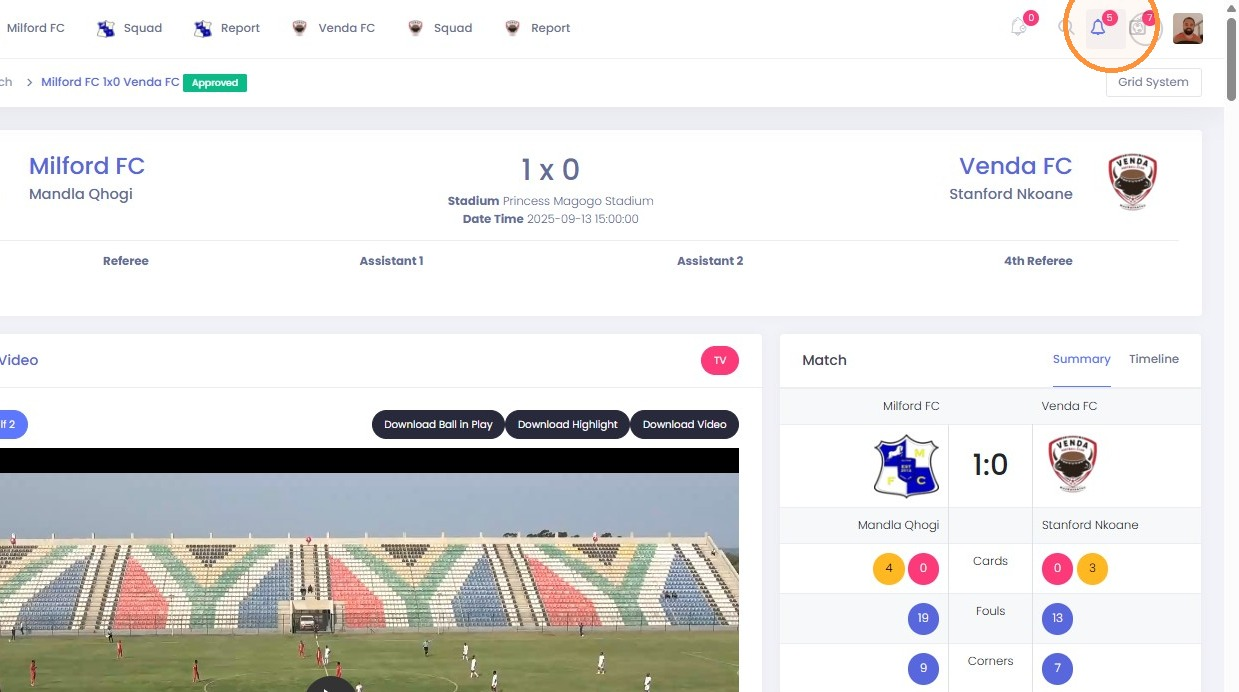
- Open the notifications menu from the top bar.
- Click KS Notifications Center.
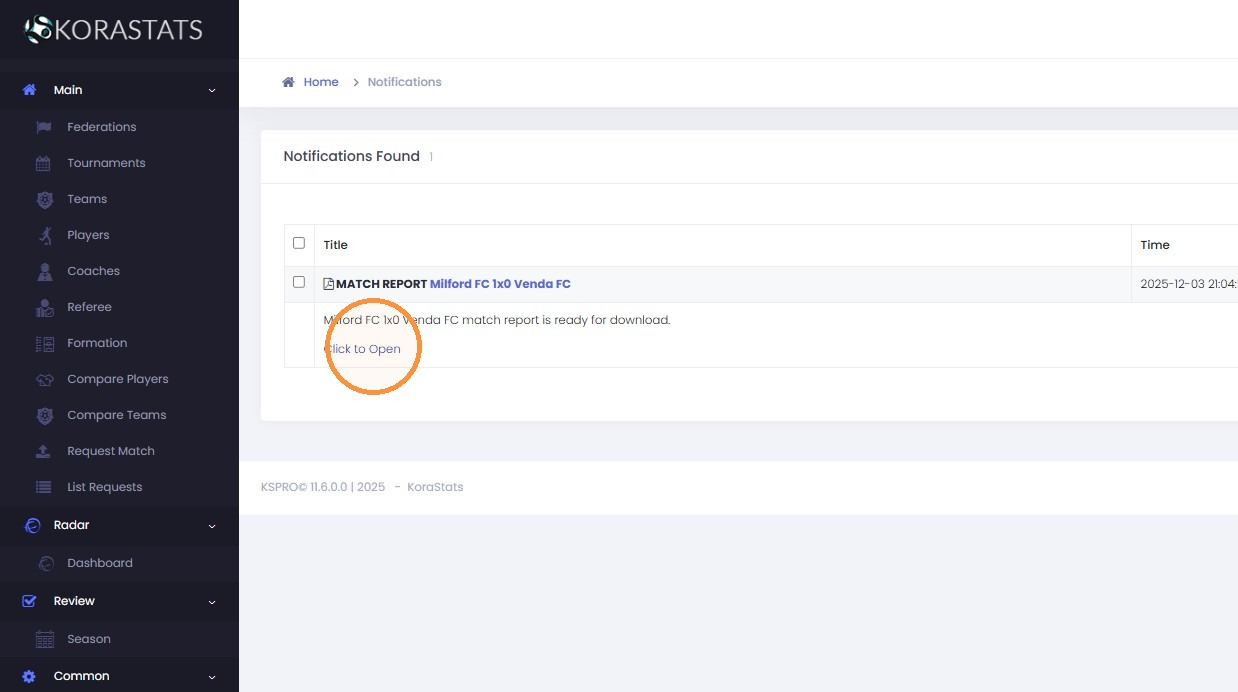
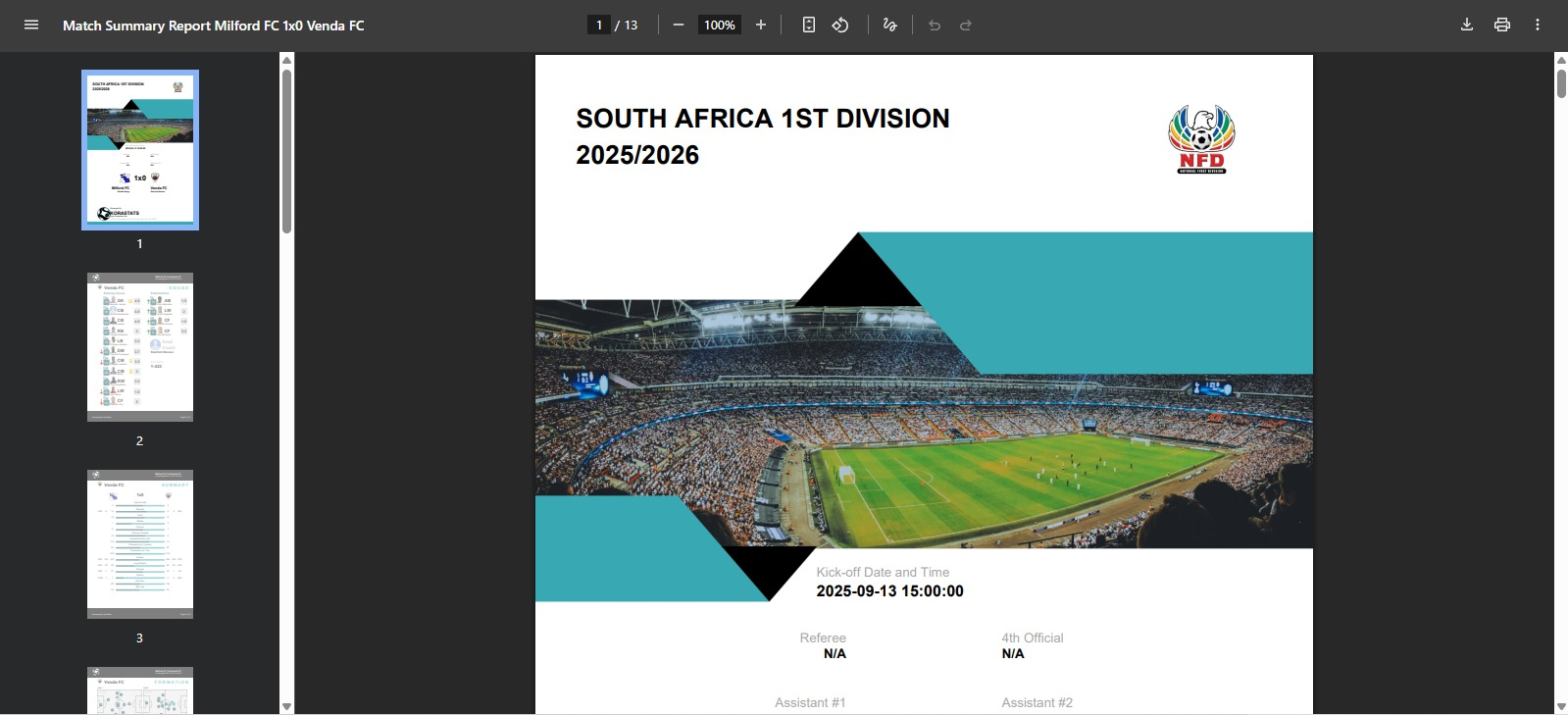
- In the notifications center, find the generated report and click Click to Open.
- When the report opens in your browser, press Ctrl + S to save the file to your device.
Download an Individual Player Report
- Open the required match.
- Click the player report option shown on the match page.
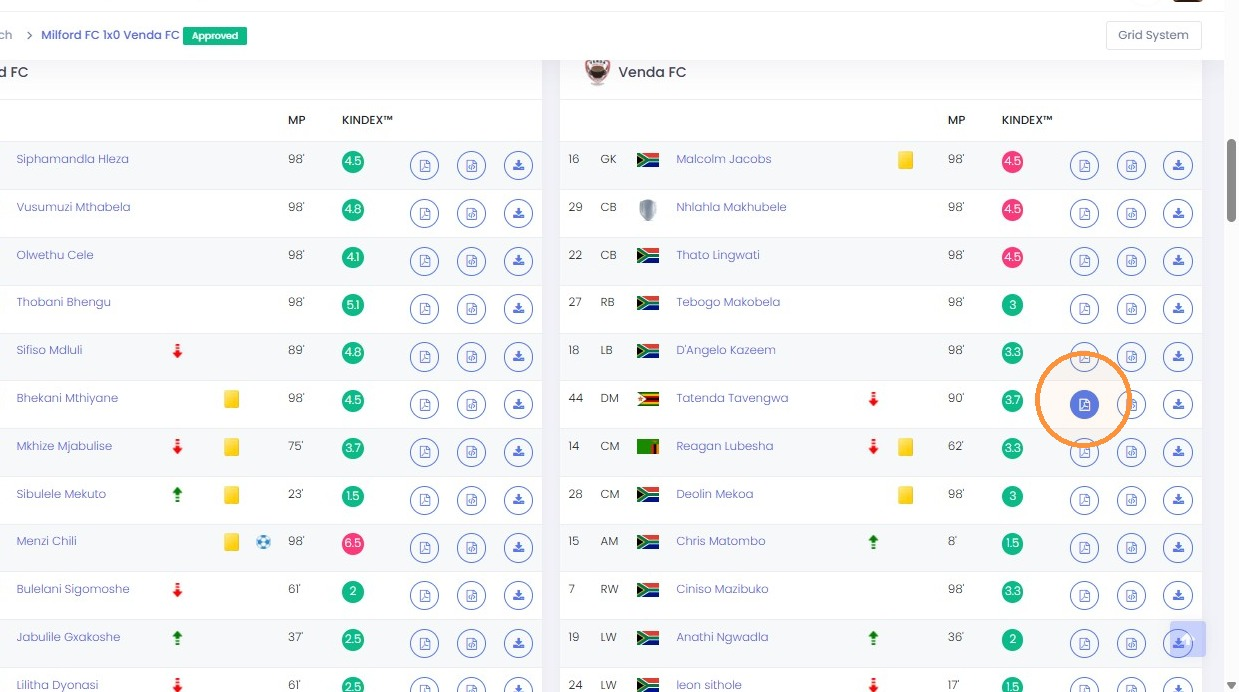
- Open the notifications menu from the top bar.
- Click KS Notifications Center.
- Find the generated player report and click Click to Open.
- When the report opens in your browser, press Ctrl + S to save it to your device.
Download an Individual Player Video
- Open the required match.
- Click the player video option shown on the match page.
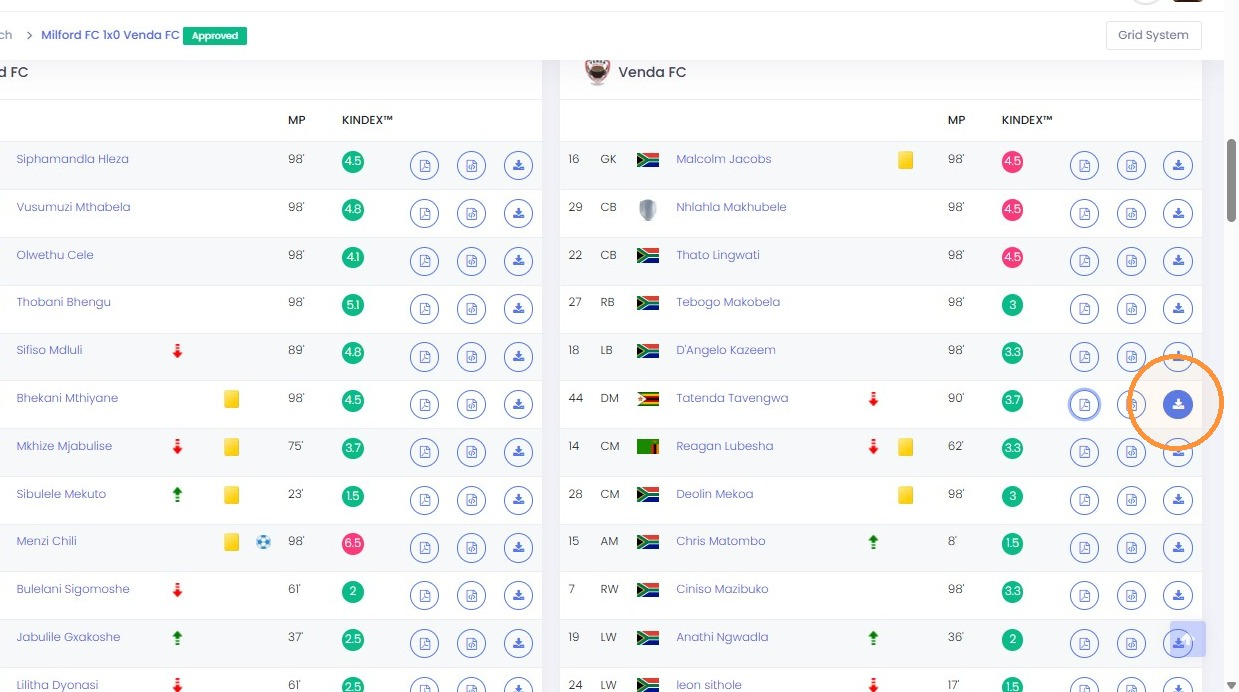
- Open the notifications menu from the top bar.
- Click KS Notifications Center.
- Find the generated player video and click Click to Open.
- Save the video file to your device when it opens or downloads.
Notes
- Reports and videos may appear in the KS Notifications Center after they are generated.
- Use the correct match page before generating any report or video.
- If the report opens in the browser instead of downloading automatically, use Ctrl + S to save it manually.